

Is your website blocking ChatGPT? How to check in two minutes
Many WordPress security plugins, web hosts, and Cloudflare setups silently block AI search bots by default. If AI crawlers can't read your pages, they can't verify your services or recommend your business to local searchers. Here is how to check your site in two minutes and fix it.
Why AI crawlers need access to your website
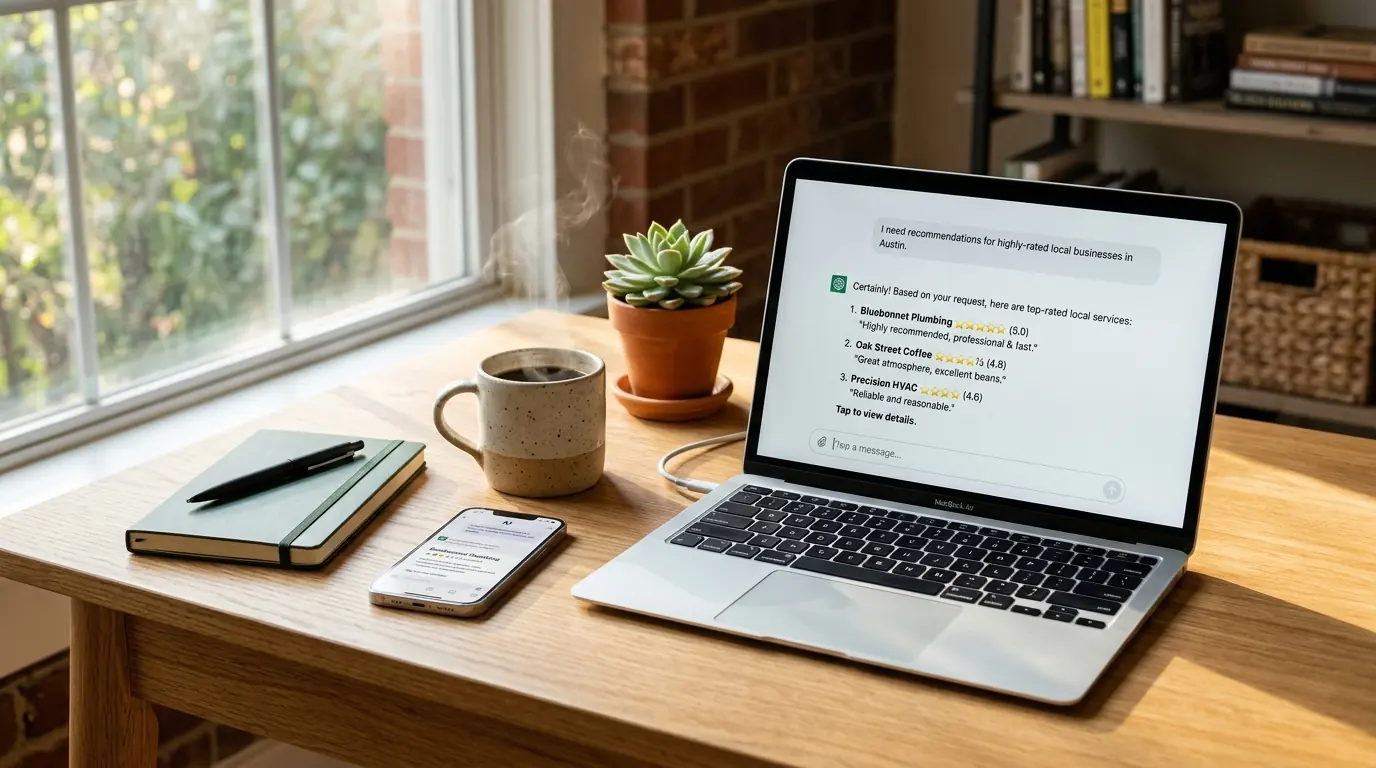
When someone asks an AI tool like ChatGPT, Perplexity, or Claude: “Who is a qualified commercial electrician in Coventry with 24-hour emergency callout?”, the AI doesn’t just rely on training data from two years ago. It performs a live web search.
To confirm that your business is legitimate, open, and qualified, the AI search engine sends a software robot (crawler) to read your website. If your server rejects the crawler or returns a 403 Forbidden error, the AI assumes your website is down, inaccessible, or untrustworthy. It skips you and recommends your competitor instead.
The tragedy is that thousands of small business owners are completely invisible to AI search without knowing it—simply because an over-zealous WordPress security plugin added a blanket blocking rule without their consent.
You cannot be recommended by an AI tool that isn't allowed to read your website. Checking your robots.txt file takes 2 minutes in any browser and ensures AI search engines can see your prices, phone number, and services.
Meet the bots: GPTBot, OAI-SearchBot, PerplexityBot
Different AI companies deploy different automated web crawlers. The main crawlers you want to allow are:
- OAI-SearchBot: OpenAI’s real-time search bot used by ChatGPT Search to find and cite live web sources.
- GPTBot: OpenAI’s general web crawler that indexes information to build knowledge graphs.
- PerplexityBot: The crawler for Perplexity AI, one of the fastest-growing AI answer engines in the world.
- ClaudeBot: Anthropic’s crawler used by Claude for indexing and search grounding.
- Google-Extended: Google’s crawler token used by Gemini and Google AI systems to gather reference data.
Step 1: Check your robots.txt file in any browser
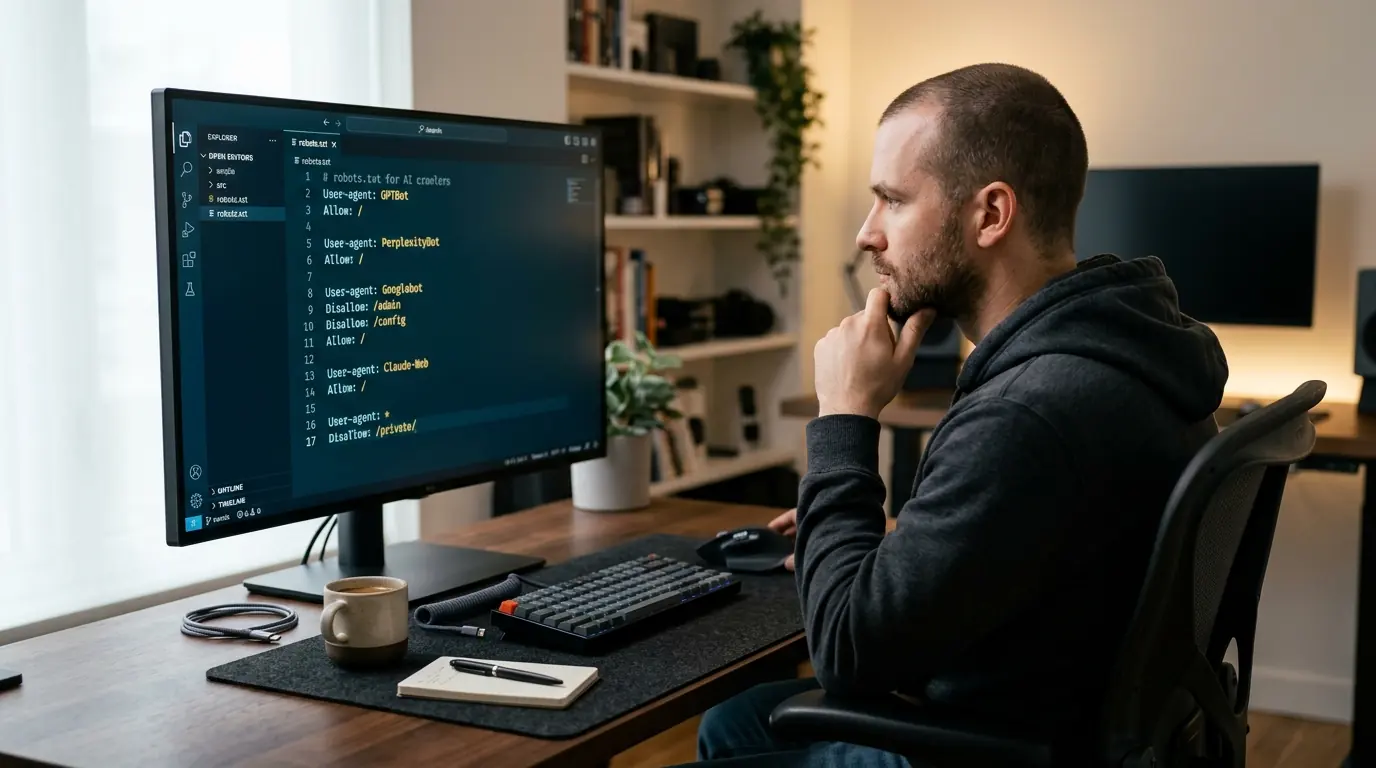
Every website has a special instruction file called robots.txt sitting at the root of its domain. This file tells web crawlers which pages they are allowed to read and which pages they should stay away from.
You can check yours right now in ten seconds: open your web browser and navigate to yourdomain.com/robots.txt (replace with your actual website address). You will see a few lines of plain text.
Step 2: Identifying rules that block AI search
Look through the lines in your robots.txt file. Here are the warning signs to look for:
The Total Block (Nuclear Option)
User-agent: *
Disallow: /
If your robots.txt looks like this, you are telling every search engine on earth (including Google, Bing, and ChatGPT) not to index your website. This often happens when a web developer checks the “Discourage search engines from indexing this site” box in WordPress settings during development and forgets to uncheck it before launch.
Specific AI Blocks
User-agent: GPTBot
Disallow: /

User-agent: OAI-SearchBot
Disallow: /

User-agent: PerplexityBot
Disallow: /
If you see these lines, your site is explicitly forbidding ChatGPT and Perplexity from reading your content. You must remove these Disallow: / rules so AI search engines can browse your pages.
Step 3: Checking Cloudflare, Wordfence, and host firewalls
Even if your robots.txt is completely clean, your web hosting firewall or security plugins might be blocking AI bots behind the scenes:
- Cloudflare: Cloudflare introduced a one-click toggle called “Block AI Scrapers and Crawlers” in its Web Application Firewall. If this toggle is switched on, Cloudflare blocks all requests from OpenAI and Perplexity before they ever touch your website. To fix it: log into Cloudflare, navigate to Security > Bots, and verify that legitimate AI search bots are allowed.
- Wordfence & iThemes Security (WordPress): Check your plugin firewall settings. Ensure that “Aggressive Bot Blocking” is not flagging verified crawler IP addresses.
- WAF Host Protection: Certain cheap shared web hosts block unfamiliar user agents to save server bandwidth. Check your host’s security logs or contact technical support to confirm AI search bots are whitelisted.
A safe, clean robots.txt template that welcomes AI
Here is what a standard, healthy robots.txt file for a small business website should look like:
User-agent: *
Allow: /
Disallow: /wp-admin/
Disallow: /cart/
Disallow: /checkout/
Disallow: /login/

Sitemap: https://yourdomain.com/sitemap.xml
This clean setup allows search engines and AI search bots to freely crawl your public service pages, blog articles, and contact details, while securely protecting private administration portals and customer checkout areas.
What is an llms.txt file and do you need one?
llms.txt is an emerging open standard designed specifically for AI models. Similar to how robots.txt provides instructions to web crawlers, an llms.txt file provides a concise, markdown-formatted executive summary of your entire business for AI tools.
It contains clean, bulleted facts: your legal business name, registered address, direct telephone, core service categories, pricing ranges, and direct links to key documentation. While not mandatory yet, having an llms.txt file on your domain gives forward-thinking businesses a distinct advantage in AI answer accuracy. Learn how to set one up in our glossary guide to llms.txt explained simply.
Frequently asked questions
Does allowing AI bots mean they will steal my content?
AI crawlers like OAI-SearchBot and PerplexityBot read your public website content specifically to cite your business and direct searchers to your website. If you block them, you don't prevent AI from existing; you simply prevent AI from recommending your company to paying customers.
Can I allow search bots while blocking AI training scrapers?
Yes. OpenAI distinguishes between `OAI-SearchBot` (used for live search citations in ChatGPT Search) and `GPTBot` (used for model training). You can allow `OAI-SearchBot` while disallowing `GPTBot` if you prefer.
How do I edit my robots.txt file in WordPress?
Most popular SEO plugins (like Yoast, Rank Math, or All in One SEO) include a built-in File Editor where you can view and edit your robots.txt directly from your WordPress dashboard without touching FTP.
How quickly will ChatGPT see the change after I unblock it?
Once your robots.txt is updated and firewalls are unblocked, real-time AI search tools like ChatGPT Search and Perplexity can access your pages within hours on their next live crawl.

Not sure where to start?
Run a free check and get your top three fixes in plain words.
Free. No signup. No card.